Android 4.0 Brings 8 New Features


Android 4.0 Ice Cream SandwichGoogle and Samsung teamed up for a joint announcement on Android 4.0 “Ice Cream Sandwich” in Hong Kong on Wednesday. Samsung was involved because it’s manufacturing the first Android 4.0 device, the Galaxy Nexus, which becomes the latest “Google phone,” following in the footsteps of the Nexus One and the Nexus S.

Thankfully, the announcement was dominated by updates about Android 4.0, which reunites the platform around one OS for both smartphones and tablets. On Wednesday, Google was mostly talking about Android 4.0’s smartphone features and there were a lot to like.

While Google showed off plenty of the improvements were just eye candy, here’s my list of eight new features in Ice Cream Sandwich that will actually be quite useful:

1. Android Beam

This is a secure peer-to-peer sharing mechanism using NFC that lets you quickly send content or information from one Android device to another. My colleague Larry Dignan said it reminds him of using IR to beam a digital business card on the old Palm devices. Hopefully, Beam will prove to be more versatile and reliable.

2. Data usage tools

Android 4.0 Phone Home ScreenAndroid 4.0 integrates its own built-in tools for tracking and controlling your data usage so that you don’t go over your data plan cap and owe your carrier extra money at the end of the month. This is more important than ever with the inevitable advent of usage caps in 4G.

3. Voice typing

There’s a new “voice input engine” in Ice Cream Sandwich that allows you to dictate an extended message like an email or a text message. Don’t confuse this with the iPhone’s new Siri digital assistant, but it could be a very useful feature for when you’re in the car.

4. Face unlock

Google has introduced facial recognition to its unlock screen. Instead of using a PIN or pattern recognition, you can now choose facial recognition as your login/unlock method. In the demo at the announcement, the feature failed, so this could need a couple iterations before it works smoothly.

5. Universal copy-and-paste

Android already has copy-and-paste but the various Android skins from the OEMs (and even some apps) implement it differently. In Android 4.0, Google has improved the feature and made it universal.

6. Quick responses to calls

When you receive a call but choose to send it to voicemail, you can now select from a series of canned messages (like “Sorry, in a meeting” or “Call me back in 20 min”) and an automatic text message will be sent to the caller.

7. Screenshots

You can now take screenshots in Android by holding down the power and volume-down buttons. Thank you! This is especially helpful for us journalists, but it’s also useful for IT and business pros who need to put together documentation or show an employee how to do something in Android. No longer do we have to install the whole SDK just to take a simple screenshot.

8. Camera improvements

The camera app has gotten a big upgrade. Google promises “continuous focus, zero shutter lag exposure, and decreased shot-to-shot speed.” I have my doubts about zero shutter lag, but if they’ve improved significantly on the laggy camera app in most Android phones then it will be a welcome upgrade.

Related Links:

5 Methods to View PowerPoint on Android

Android Smartphones' 20 Most Useful Apps

12 Best Free Mac Apps in Apple Store

The Almight Shift and Ctrl Key in PowerPoint


PowerPoint TipsI have beening using PowerPont for many years, from the PowerPoin 2003 to PowerPoint 2010 now. All the progress Microsoft have made, all the new functions Microsoft have added as well the changes between the different versions, I knew quite well.

But when I came acroo the following PowerPoint tips, I realize that there are so many things I still don't know about PowerPoint, and something really basic and simple. For long I have used to use mainly the mouse to ctrol the PowerPoint program. From now on, I will try to use these keyboard shortcut. So I put them down here, hope it would help you when you create PowerPoint presentations

1. The Mighty Shift Key
Hold down the SHIFT key when drawing a line to get a perfectly straight line.
Hold down the SHIFT key when drawing an oval to get a perfectly round circle.
Hold down the SHIFT key when drawing a rectangle to get a square.
Hold down the SHIFT key while clicking on the normal view icon to get the Master slide.
Hold down the SHIFT key while clicking on the slide sorter view to get the handouts master.
Hold down the SHIFT key while pressing Enter to get a blank line without a bullet.
Hold down the SHIFT key to select multiple objects on a slide at the same time.
Hold down the SHIFT key while resizing a graphic to retain the same proportions in the resized graphic.
Hold down the SHIFT key while pressing F3 to change the case of letters.

2. The Mighty Ctrl Key
Hold down the CTRL key while clicking the slide show view button when you are editing a slide show. This will open a preview window so you can see that slide in slide show mode.
Hold down the CTRL key while dragging an existing Guide to create a new guide.
Hold down the CTRL key while turning the wheel on the mouse to zoom in and out of the slide
Hold down the CTRL key plus the HOME key to go to the first slide
Hold down the CTRL key plus the END key to go to the last slide in your presentation
CTRL + A (on the Slides tab) to select all objects
CTRL + A (in slide sorter view) to select all slides
CTRL + A (on the Outline tab) to select all text in your slide show
CTRL + B to apply bold formatting
CTRL + C to copy the selected object
CTRL + D to duplicate (make a copy of) the selected slide
CTRL + E to center a paragraph
CTRL + F to find text
CTRL + G to open the grids and guidelines dialog box
CTRL + H to replace text
CTRL + I to apply italic formatting
CTRL + J to justify a paragraph (full alignment)
CTRL + K to insert a hyperlink
CTRL + L to left align a paragraph
CTRL + M to insert a new slide
CTRL + N to create a new presentation
CTRL + O to open an existing presentation
CTRL + P to print a presentation
CTRL + Q to quit PowerPoint
CTRL + R to right align a paragraph
CTRL + S to save a presentation
CTRL + T to change the formatting of characters between sentence, lowercase, and uppercase
CTRL + U to apply underline formatting
CTRL + V to paste a cut or copied object
CTRL + W to close a presentation
CTRL + X to cut a selected objected
CTRL + Y to redo or repeat an action
CTRL + Z to undo the last action
CTRL + Equal Sign to apply subscript formatting
CTRL + SHIFT + Plus Sign to apply superscript formatting
CTRL + Space Bar to remove subscript and superscript

For more useful PowerPoint tips and skills:


http://www.dvd-ppt-slideshow.com/blog/category/knowledge-tips-skills/

View 4 PowerPoint Files in One Window

Microsoft PowerPoint the most widely use presentation program for all kinds of people, no matter students, teachers, businessmen, researchers or governors. It is part of the Microsoft Office Suite. The latest version for Windows system is PowerPoint 2010 and PowerPoint 2011 for Mac system. If you have ever tried to view several PowerPoint presentations at a time, you may have noticed that only one presentation will show up, others will be placed at the background. How can you view several PowerPoint presentations in one window? Let’s take PowerPoint 2007 as example to show you how to make it:

Step 1: Run PowerPoint 2007 and click the Office button at the top of the page. You can open, save and print PowerPoint files from its menu.

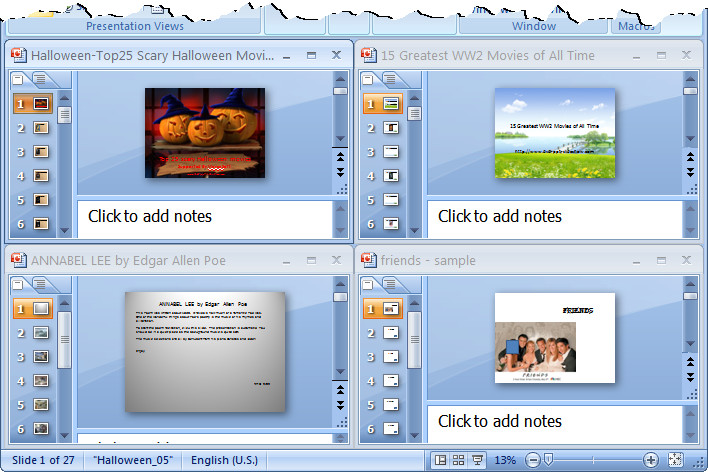
Step 2: Click Open to open several PowerPoint presentations, for example 4 PowerPoint files at one time. You will see only the last one and the former 3 PowerPoint files are hidden behind it.

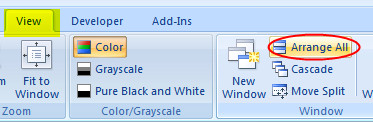
Step 3: Click the View tab at the top, and find the Window section below. There click Arrange All and you will see all the 4 PowerPoint presentations show in one window.


Tips:

To view several PowerPoint presentations in just one window would be very useful if you need to compare data on different PowerPoint files.